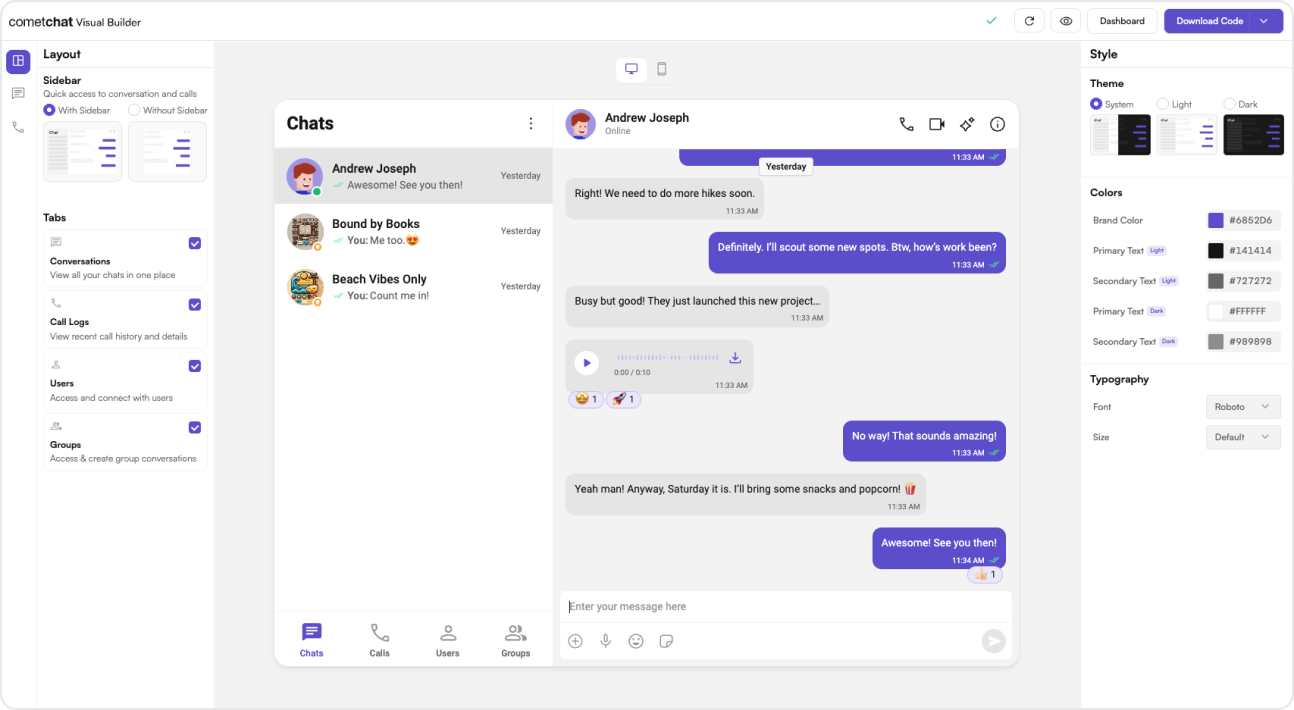
UI Kit Builder is a powerful tool designed to simplify the integration of CometChat’s UI Kit into your existing React application.
With the UI Kit Builder, you can quickly set up chat functionalities, customize UI elements, and integrate essential features without extensive coding.
Quick Reference for AI Agents & Developers - What this page covers:
Integrating CometChat’s UI Kit Builder into an existing React Router
application — initialization, user login, SSR handling, and rendering the chat
UI. - Prerequisites: A CometChat account with App ID, Region, and Auth Key
from the CometChat Dashboard; an existing React
Router project. - Key action: Install dependencies, initialize CometChat
UI Kit, log in a user, disable SSR for the CometChat component, and render
CometChatApp. Complete Integration Workflow
- Design Your Chat Experience - Use the UI Kit Builder to customize layouts, features, and styling.
- Review and Export - Review which features will be enabled in your Dashboard, toggle them on/off, and download the generated code package.
- Preview Customizations - Optionally, preview the chat experience before integrating it into your project.
- Integration - Integrate into your existing application.
- Customize Further - Explore advanced customization options to tailor the chat experience.
Launch the UI Kit Builder
- Log in to your CometChat Dashboard.
- Select your application from the list.
- Navigate to Chat & Messaging → Get Started.
- Choose your platform and click Launch UI Kit Builder.
Review Your Export
When you click Export, a “Review Your Export” modal appears (Step 1 of 3). This lets you:
- Review features — See which features will be enabled in your CometChat Dashboard based on your UI Kit configuration
- Toggle features — Turn individual features on/off before export
- AI User Copilot — Requires an OpenAI API key (you’ll configure this in the next step)
Only checked features will be enabled in your Dashboard. You can always modify
these settings later in the CometChat Dashboard.
Preview Customizations (Optional)
Before integrating the UI Kit Builder into your project, you can preview the chat experience by following these steps. This step is completely optional and can be skipped if you want to directly integrate the UI Kit Builder into your project.
You can preview the experience:
- Open the
cometchat-app-react folder.
- Install dependencies:
- Run the app:
Your app credentials are already prepopulated in the exported code.
Integration with CometChat UI Kit Builder (React Router)
Step 1: Install Dependencies
npm install @cometchat/chat-uikit-react@6.3.9 @cometchat/calls-sdk-javascript
Step 2: Copy CometChat Folder
Copy the cometchat-app-react/src/CometChat folder inside your src/app directory.
Step 3: Create & Initialize CometChatNoSSR.tsx
Directory Structure:
src/app/
├── CometChat/
└── CometChatNoSSR/
    └── CometChatNoSSR.tsx
src/app/CometChatNoSSR/CometChatNoSSR.tsx
import React, { useEffect, useState } from "react";
import {
  CometChatUIKit,
  UIKitSettingsBuilder,
} from "@cometchat/chat-uikit-react";
import CometChatApp from "../CometChat/CometChatApp";
import { CometChatProvider } from "../CometChat/context/CometChatContext";
import { setupLocalization } from "../CometChat/utils/utils";

export const COMETCHAT_CONSTANTS = {
  APP_ID: "YOUR_APP_ID", // Replace with your App ID
  REGION: "YOUR_REGION", // Replace with your App Region
  AUTH_KEY: "YOUR_AUTH_KEY", // Replace with your Auth Key
};

const CometChatNoSSR: React.FC = () => {
  const [initialized, setInitialized] = useState(false);

  useEffect(() => {
    if (typeof window === "undefined") return;

    const UIKitSettings = new UIKitSettingsBuilder()
      .setAppId(COMETCHAT_CONSTANTS.APP_ID)
      .setRegion(COMETCHAT_CONSTANTS.REGION)
      .setAuthKey(COMETCHAT_CONSTANTS.AUTH_KEY)
      .subscribePresenceForAllUsers()
      .build();

    CometChatUIKit.init(UIKitSettings)
      ?.then(() => {
        setupLocalization();
        console.log("Initialization completed successfully");
        setInitialized(true);
      })
      .catch((error) => console.error("Initialization failed", error));
  }, []);

  if (!initialized) {
    return <div>Initializing Chat...</div>;
  }

  return (
    <div style={{ width: "100vw", height: "100vh" }}>
      <CometChatProvider>
        <CometChatApp />
      </CometChatProvider>
    </div>
  );
};

export default CometChatNoSSR;
Step 4: User Login
To authenticate a user, you need a UID. You can either:
-
Create new users on the CometChat Dashboard, CometChat SDK Method or via the API.
-
Use pre-generated test users:
cometchat-uid-1cometchat-uid-2cometchat-uid-3cometchat-uid-4cometchat-uid-5
The Login method returns a User object containing all relevant details of the logged-in user.
Security Best Practices
- The Auth Key method is recommended for proof-of-concept (POC) development and early-stage testing.
- For production environments, it is strongly advised to use an Auth Token instead of an Auth Key to enhance security and prevent unauthorized access.
import { CometChatUIKit } from "@cometchat/chat-uikit-react";

const UID = "cometchat-uid-1"; // Replace with your actual UID

CometChatUIKit.getLoggedinUser().then((user: CometChat.User | null) => {
if (!user) {
// If no user is logged in, proceed with login
CometChatUIKit.login(UID)
.then((user: CometChat.User) => {
console.log("Login Successful:", { user });
// Mount your app
})
.catch(console.log);
} else {
// If user is already logged in, mount your app
}
});
import { CometChatUIKit } from "@cometchat/chat-uikit-react";

const UID = "cometchat-uid-1"; // Replace with your actual UID

CometChatUIKit.getLoggedinUser().then((user) => {
  if (!user) {
    // If no user is logged in, proceed with login
    CometChatUIKit.login(UID)
      .then((user) => {
        console.log("Login Successful:", { user });
        // Mount your app
      })
      .catch(console.log);
  } else {
    // If user is already logged in, mount your app
  }
});
- Build the CometChat UIKit settings using your App ID, Region, and Auth Key.
- Initialize CometChatUIKit with those settings and set up localization.
- Check if a user is already logged in; if not, perform a login with a hard-coded UID (replace “UID” with your actual user ID).
import React, { useEffect, useState } from "react";
import {
  CometChatUIKit,
  UIKitSettingsBuilder,
} from "@cometchat/chat-uikit-react";
import { CometChat } from "@cometchat/chat-sdk-javascript";
import CometChatApp from "../CometChat/CometChatApp";
import { CometChatProvider } from "../CometChat/context/CometChatContext";
import { setupLocalization } from "../CometChat/utils/utils";

// Replace these with your actual keys
export const COMETCHAT_CONSTANTS = {
APP_ID: "YOUR_APP_ID", // Your App ID
REGION: "YOUR_REGION", // Your App Region
AUTH_KEY: "YOUR_AUTH_KEY", // Your Auth Key
};

const CometChatNoSSR: React.FC = () => {
const [initialized, setInitialized] = useState(false);
const [user, setUser] = useState<CometChat.User | null>(null);

useEffect(() => {
// Exit if not running in the browser
if (typeof window === "undefined") return;

    const UIKitSettings = new UIKitSettingsBuilder()
      .setAppId(COMETCHAT_CONSTANTS.APP_ID)
      .setRegion(COMETCHAT_CONSTANTS.REGION)
      .setAuthKey(COMETCHAT_CONSTANTS.AUTH_KEY)
      .subscribePresenceForAllUsers()
      .build();

    CometChatUIKit.init(UIKitSettings)
      ?.then(() => {
        console.log("Initialization completed");
        setupLocalization();
        setInitialized(true);

        const UID = "cometchat-uid-1"; // Replace with your actual UID

        CometChatUIKit.getLoggedinUser().then((loggedInUser) => {
          if (!loggedInUser) {
            CometChatUIKit.login(UID)
              .then((newUser) => {
                console.log("Login successful:", newUser);
                setUser(newUser);
              })
              .catch((error) => {
                console.error("Login failed:", error);
              });
          } else {
            console.log("User already logged in:", loggedInUser);
            setUser(loggedInUser);
          }
        });
      })
      .catch((error) => {
        console.error("CometChat initialization failed:", error);
      });

}, []);

if (!initialized || !user) {
return <div>Initializing Chat...</div>;
}

return (

<div style={{ width: "100vw", height: "100vh" }}>
<CometChatProvider>
<CometChatApp />
</CometChatProvider>
</div>
);
};

export default CometChatNoSSR;
import React, { useEffect, useState } from "react";
import {
  CometChatUIKit,
  UIKitSettingsBuilder,
} from "@cometchat/chat-uikit-react";
import CometChatApp from "../CometChat/CometChatApp";
import { CometChatProvider } from "../CometChat/context/CometChatContext";
import { setupLocalization } from "../CometChat/utils/utils";

// Replace these with your actual keys
export const COMETCHAT_CONSTANTS = {
APP_ID: "YOUR_APP_ID", // Your App ID
REGION: "YOUR_REGION", // Your App Region
AUTH_KEY: "YOUR_AUTH_KEY", // Your Auth Key
};

const CometChatNoSSR = () => {
const [initialized, setInitialized] = useState(false);
const [user, setUser] = useState(null);

useEffect(() => {
// Exit if not running in the browser
if (typeof window === "undefined") return;

    const UIKitSettings = new UIKitSettingsBuilder()
      .setAppId(COMETCHAT_CONSTANTS.APP_ID)
      .setRegion(COMETCHAT_CONSTANTS.REGION)
      .setAuthKey(COMETCHAT_CONSTANTS.AUTH_KEY)
      .subscribePresenceForAllUsers()
      .build();

    CometChatUIKit.init(UIKitSettings)
      ?.then(() => {
        console.log("Initialization completed");
        setupLocalization();
        setInitialized(true);

        const UID = "cometchat-uid-1"; // Replace with your actual UID

        CometChatUIKit.getLoggedinUser().then((loggedInUser) => {
          if (!loggedInUser) {
            CometChatUIKit.login(UID)
              .then((newUser) => {
                console.log("Login successful:", newUser);
                setUser(newUser);
              })
              .catch((error) => {
                console.error("Login failed:", error);
              });
          } else {
            console.log("User already logged in:", loggedInUser);
            setUser(loggedInUser);
          }
        });
      })
      .catch((error) => {
        console.error("CometChat initialization failed:", error);
      });

}, []);

if (!initialized || !user) {
return <div>Initializing Chat...</div>;
}

return (

<div style={{ width: "100vw", height: "100vh" }}>
<CometChatProvider>
<CometChatApp />
</CometChatProvider>
</div>
);
};

export default CometChatNoSSR;
Step 5: Disable SSR and Render the CometChat Component
Create a file CometChat.tsx inside the routes folder:
import React, { lazy, Suspense } from "react";
import "@cometchat/chat-uikit-react/css-variables.css";

// Lazy load the CometChat component
const CometChatComponent = lazy(
  () => import("../CometChatNoSSR/CometChatNoSSR"),
);

export default function Home() {
  return (
    <Suspense fallback={<div>Loading Chat...</div>}>
      <CometChatComponent />
    </Suspense>
  );
}
import { type RouteConfig, index, route } from "@react-router/dev/routes";

export default [
  index("routes/home.tsx"),
  route("chat", "routes/CometChat.tsx"), // Chat Route
] satisfies RouteConfig;
Why disable SSR? CometChat UI Kit Builder relies on browser APIs such as window, document, and WebSockets. Since React Router renders on the server by default, disabling SSR for this component prevents runtime errors.
Render with Default User and Group
You can also render the component with default user and group selection:
import React, { useEffect, useState } from "react";
import {
  CometChatUIKit,
  UIKitSettingsBuilder,
} from "@cometchat/chat-uikit-react";
import CometChatApp from "../CometChat/CometChatApp";
import { CometChatProvider } from "../CometChat/context/CometChatContext";
import { setupLocalization } from "../CometChat/utils/utils";
import { CometChat } from "@cometchat/chat-sdk-javascript";

export const COMETCHAT_CONSTANTS = {
  APP_ID: "YOUR_APP_ID", // Replace with your App ID
  REGION: "YOUR_REGION", // Replace with your App Region
  AUTH_KEY: "YOUR_AUTH_KEY", // Replace with your Auth Key
};

// Functional Component
const CometChatNoSSR: React.FC = () => {
  const [user, setUser] = useState<CometChat.User | undefined>(undefined);

  const [selectedUser, setSelectedUser] = useState<CometChat.User | undefined>(
    undefined
  );
  const [selectedGroup, setSelectedGroup] = useState<
    CometChat.Group | undefined
  >(undefined);

  useEffect(() => {
    const UIKitSettings = new UIKitSettingsBuilder()
      .setAppId(COMETCHAT_CONSTANTS.APP_ID)
      .setRegion(COMETCHAT_CONSTANTS.REGION)
      .setAuthKey(COMETCHAT_CONSTANTS.AUTH_KEY)
      .subscribePresenceForAllUsers()
      .build();
    // Initialize CometChat UIKit
    CometChatUIKit.init(UIKitSettings)
      ?.then(() => {
        setupLocalization();
        console.log("Initialization completed successfully");
        CometChatUIKit.getLoggedinUser().then((loggedInUser) => {
          if (!loggedInUser) {
            CometChatUIKit.login("cometchat-uid-1") // Replace with your logged in user UID
              .then((user) => {
                console.log("Login Successful", { user });
                setUser(user);
              })
              .catch((error) => console.error("Login failed", error));
          } else {
            console.log("Already logged-in", { loggedInUser });
            setUser(loggedInUser);
          }
        });
      })
      .catch((error) => console.error("Initialization failed", error));
  }, []);

  useEffect(() => {
    if (user) {
      // Fetch user or group from CometChat SDK whose chat you want to load.

      /** Fetching User */
      const UID = "cometchat-uid-2"; // Replace with your actual UID
      CometChat.getUser(UID).then(
        (user) => {
          setSelectedUser(user);
        },
        (error) => {
          console.log("User fetching failed with error:", error);
        }
      );

      /** Fetching Group */
      // const GUID = "cometchat-guid-1"; // Replace with your actual GUID
      // CometChat.getGroup(GUID).then(
      //   (group) => {
      //     setSelectedGroup(group);
      //   },
      //   (error) => {
      //     console.log("User fetching failed with error:", error);
      //   }
      // );
    }
  }, [user]);

  return (
    /* The CometChatApp component requires a parent element with an explicit height and width
   to render properly. Ensure the container has defined dimensions, and adjust them as needed
   based on your layout requirements. */
    <div style={{ width: "100vw", height: "100dvh" }}>
      <CometChatProvider>
        {(selectedUser || selectedGroup) && (
          <CometChatApp user={selectedUser} group={selectedGroup} />
        )}
      </CometChatProvider>
    </div>
  );
};

export default CometChatNoSSR;
- User Chats (
chatType = "user"): Displays one-on-one chats only, either for a currently selected user or the default user.
- Group Chats (
chatType = "group"): Displays group chats exclusively, either for a currently selected group or the default group.
Step 6: Run Your Application
-
Start the development server
-
Verify the chat interface
- In your browser, navigate to the
/chat route (e.g., http://localhost:3000/chat).
- Confirm that the chat experience loads as expected.
Advanced Customizations
Group Action Messages
Control the visibility of group action messages using the showGroupActionMessages prop:
<CometChatApp showGroupActionMessages={true} />
true (default) — Group action messages are visiblefalse — Group action messages are hidden
Auto Open First Item
Control whether the first item in lists automatically opens on render using the autoOpenFirstItem prop:
<CometChatApp autoOpenFirstItem={false} />
true (default) — The first item in conversation list, user list, or group list opens automatically on first renderfalse — No item opens until the user clicks on one
Troubleshooting
If you face any issues while integrating the builder in your app project, please check if you have the following configurations added to your tsConfig.json:
{
  "compilerOptions": {
    "jsx": "react-jsx",
    "resolveJsonModule": true
  }
}
Understanding Your Generated Code
The exported package includes several important elements to help you further customize your chat experience:
Directory Structure
The CometChat folder contains:
- Components - Individual UI elements (message bubbles, input fields, etc.)
- Layouts - Pre-configured arrangement of components
- Context - State management for your chat application
- Hooks - Custom React hooks for chat functionality
- Utils - Helper functions and configuration
Configuration Files
- CometChat Settings File - Controls the appearance and behavior of your chat UI
- Theme Configuration - Customize colors, typography, and spacing
- Localization Files - Add support for different languages
Next Steps